
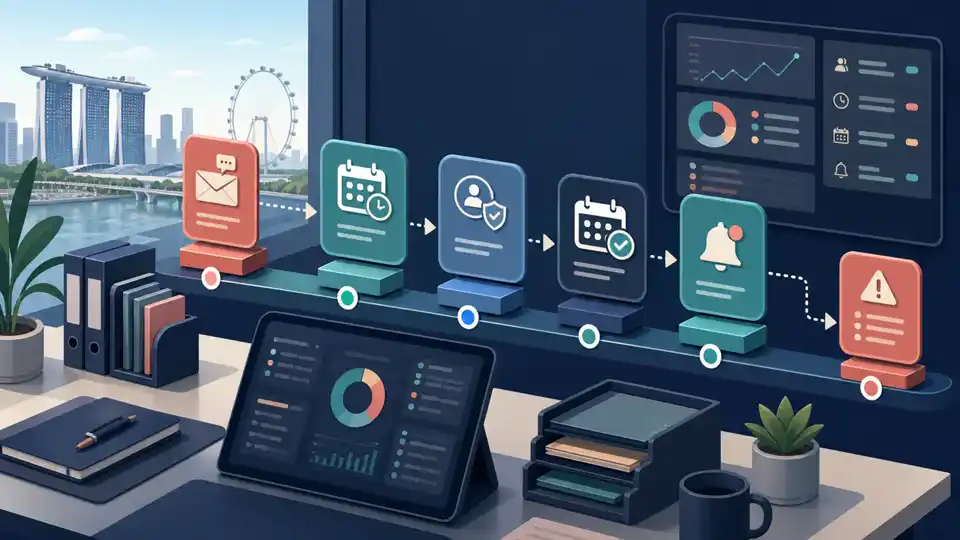
A creative agency IT support checklist should test whether your provider can keep project files, specialist workstations, cloud accounts and client deadlines moving together. For a Singapore design, video or digital team, ordinary office support is not enough if nobody understands large working files, colour-critical devices, freelance access or the hand-off between creative software and storage.
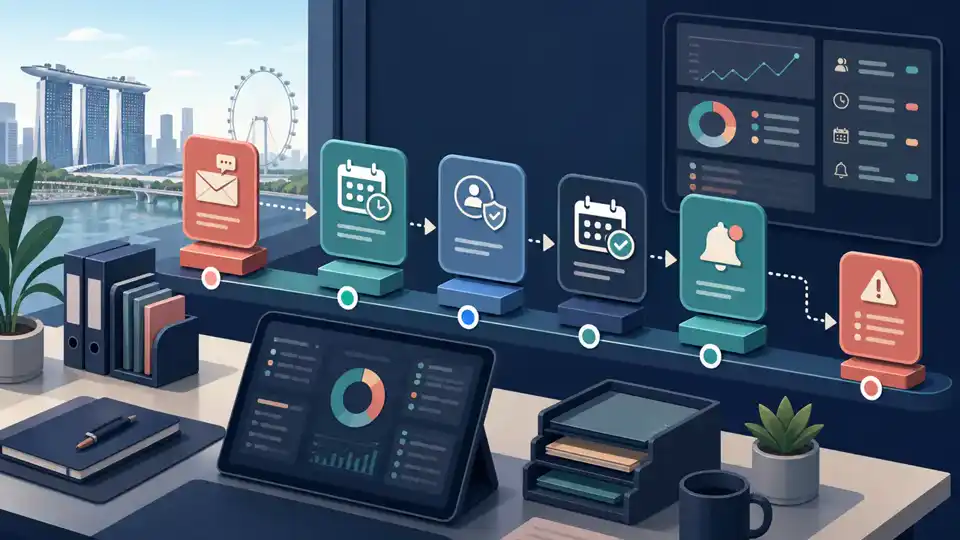
Use this checklist before appointing a managed IT provider or during your next service review. It focuses on operating ownership, not a shopping list of tools.
What makes creative agency IT support different?
A creative team may use high-spec Windows or Mac workstations, drawing tablets, shared storage, cloud collaboration, Adobe applications, stock libraries, review platforms and client-specific portals. A fault can sit between several suppliers. The computer vendor blames the application, the application vendor blames the network, and the file service appears healthy while one project remains unusable.
The useful support question is not “do you cover laptops?” It is “who owns the incident until the designer can complete the agreed task?”
1. Build an asset and application map
List managed laptops, desktops, shared edit stations, monitors, tablets, network devices and storage. Connect each asset to its usual user, location, operating system, warranty, business owner and replacement path.
Add the applications and services that make the work possible: creative suites, fonts, plug-ins, file-transfer tools, review platforms, Microsoft 365, project management and client portals. Record who owns each subscription and which supplier handles a fault. Keep licence keys and passwords out of the general register.
2. Define the files that must not be stranded
Separate active working files, approved deliverables, source assets, reusable templates and archives. Decide where each class belongs and who owns it. Local scratch space can be useful for performance, but it should not become the only copy of a live project.
Ask how the provider will detect a failed sync, a full local disk, a disconnected network share or a project folder saved outside the approved location. A green backup dashboard does not prove that the right folder was included, so require representative restore tests.
3. Agree how performance problems will be diagnosed
“The computer is slow” needs a repeatable intake. Capture the project, application version, file location, file size, plug-ins, available disk space, memory pressure, graphics driver and whether the issue follows the file or the workstation.
Define a known-good test project and one controlled workstation baseline. This helps the helpdesk separate a damaged file, account issue, network bottleneck and device fault without random changes to production machines.
4. Plan maintenance around production work
Operating-system, driver and application updates matter, but timing matters too. Agree maintenance windows, pilot groups and rollback criteria. Test major creative application or plug-in changes on a small group before broad deployment.
Do not let every workstation drift into a different combination of versions. Equally, do not force a critical update midway through a client export without an agreed exception process. The provider should record deferred updates and return to them.
5. Give freelancers bounded access
Freelancers should use named accounts where the service supports them, with access limited to the project, folder and period they need. Record the internal sponsor, start date, expected end date and systems granted.
A shared studio password makes handover quick and accountability poor. Use individual identities, multi-factor authentication where available, and a removal task tied to the engagement end. Review externally shared links separately because removing one account may not revoke every link.
6. Make onboarding and offboarding one controlled workflow
For a starter, prepare the device, company identity, approved applications, project groups and support route. For a leaver or departing freelancer, preserve business files, transfer ownership where the platform supports it, remove access, recover equipment and verify the result.
The process should cover Adobe and other creative services as well as Microsoft 365. Adobe’s Admin Console documentation notes that removing a user revokes organisation-provided permissions and, where business storage is used, offers content-transfer choices. Check the current account type and product behaviour before removal.
7. Protect shared and high-value workstations
Shared edit or render stations need named sign-in, a defined administrator, encryption where supported, endpoint protection, patch ownership and a clean-up rule for local working copies. Avoid a common administrator password passed around the studio.
Decide how temporary assets are cleared without deleting another team’s work. If a device is moved, sold or returned, follow a verified data-transfer and decommissioning procedure rather than relying on a quick manual delete.
8. Set useful helpdesk priorities
Priority should reflect business impact. One designer unable to open a non-urgent archive is different from the whole studio losing access to active project storage. Define examples for critical, high, normal and low priority, plus the person authorised to declare a client-deadline escalation.
Ask what evidence the provider records: affected users, service, start time, workaround, supplier case, changes, test result and next update. A ticket is useful only if someone owns the next action.
9. Test continuity before a deadline
Run a tabletop with a realistic scenario: the lead editor’s workstation fails on the morning of a delivery. Can the team identify the current project copy, assign a prepared replacement device, recover required applications and credentials, and continue through an approved channel?
Also test internet failure, unavailable cloud storage, failed project sync and an absent administrator. State which steps were technically demonstrated and which were only discussed.
10. Review the provider’s monthly evidence
A useful service report should show unresolved incidents, recurring device faults, patch exceptions, endpoint-security health, backup alerts, restore tests, storage trends, ageing equipment and open supplier actions. It should lead to decisions, not merely display green charts.
Creative agency IT support checklist
- Assets, applications, subscriptions and suppliers have owners.
- Active work has an approved storage location and tested recovery path.
- Performance issues use a repeatable diagnostic intake.
- Updates have pilots, windows and rollback criteria.
- Freelancer access is named, scoped and time-bounded.
- Onboarding and offboarding cover every creative service.
- Shared workstations have controlled identities and local-data rules.
- Helpdesk priority reflects project impact.
- Continuity scenarios are tested before a client deadline.
- Service reports identify exceptions and named actions.
Questions to ask a prospective MSP
- Who owns an incident that crosses the workstation, network and software vendor?
- How do you document non-standard plug-ins and creative peripherals?
- How are local project files discovered and protected?
- What is your process for a failed sync or corrupted working file?
- How do you pilot application and driver changes?
- How do you remove freelancer access and verify every path?
- What evidence will management receive each month?
Choose support that fits the production workflow
Sakal Network’s IT managed services for Singapore businesses cover helpdesk, monitoring, patch management, infrastructure and vendor coordination. Review the managed services options on Sakal Shop, or contact Sakal Network to map your studio’s devices, project systems and support hand-offs.